Connect
 PetConnect
 Cortex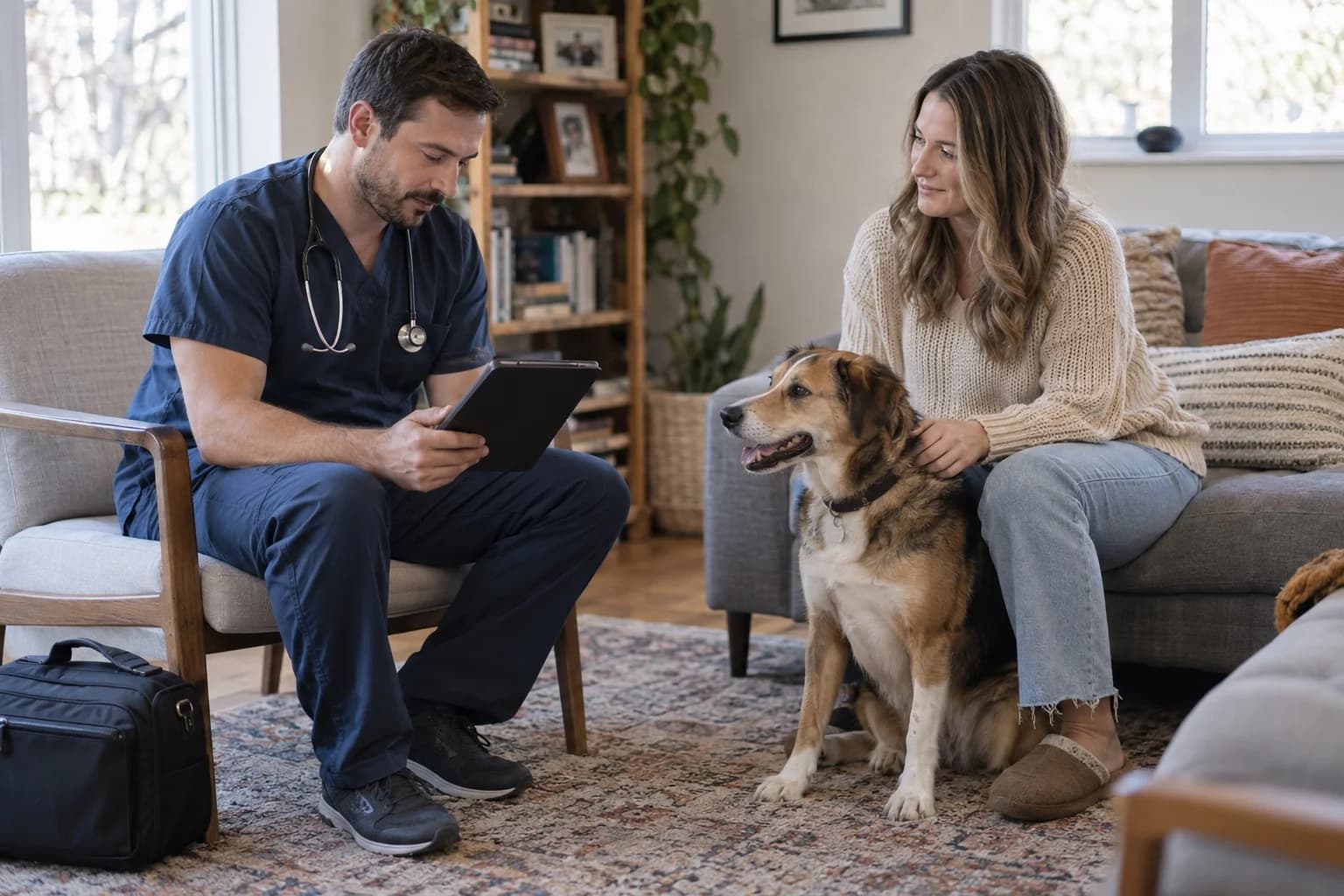
The cover image is a representative scene generated with AI.
During a house call, reaching the patient record may be less straightforward than opening the computer at reception. When evaluating mobile veterinary software, ask whether pre-visit preparation, notes made during the visit and the handover afterwards can be completed against the same patient record. What happens when the connection drops belongs in that assessment too.
This guide is for veterinarians making house calls and the practice teams supporting them. It does not assume that every product includes route planning, offline access or field payments. Use it to test your actual work on the device and account role you intend to use.
Before leaving: prepare the record and the task#
Confirm the patient match, contact person and intended visit scope. Do not select between similarly named patients on name alone. For uncertain relationships, use the duplicate-record review checklist.
Check that the information needed for the task can be reached through the authorised system instead of building a second archive. A veterinarian and a receptionist may need different access. Include sign-in, screen lock, charge and connection status in preparation.
Preparation area | Question to answer |
|---|---|
Patient match | Is the visit attached to the intended patient? |
Visit purpose | Has the expected work been agreed with the team? |
Record access | Can I reach the required history with my own permissions? |
Team contact | Who should I tell if the plan changes? |
Device | Are sign-in, charge and connection ready? |
Interruption plan | What approved method will we use without connectivity? |
The patient intake guide separates information collected beforehand from checks made on arrival. A mobile visit still needs that identity and context check.
During the visit: attach work to the patient and encounter#
Check that notes, attachments and recorded work belong to the correct visit. Seeing a patient's name on screen does not by itself show that your latest change has been saved. Confirm the completion state and that reopening the record displays the expected work.
Separate a brief working observation from a clinician-reviewed medical record. If dictation or AI assistance is used, the responsible clinician should review the draft. The AI note review checklist gives practical checks for keeping generated text distinct from an approved record.
For photographs, follow the practice's approved recording and sharing process. Make the patient and encounter relationship explicit. A personal photo library or message group should not become a substitute for the clinical record system.
Do not assume what happens without a connection#
A screen remaining open is not proof that new changes have reached the server. Some actions may require connectivity; some products may offer limited offline functions. Establish the supported behaviour for the operation you need.
Use synthetic records to test these questions during evaluation:
- What can be read when the connection is unavailable?
- Can a new note or attachment be created, and where is it held?
- How does the product show an unsaved or pending action?
- Does reconnecting require a retry or synchronisation step?
- What happens if someone at the practice has changed the same record?
If the operation is unsupported, agree an approved temporary recording process in advance. Distinguish when the event occurred from when the information was later entered. Where a save result is uncertain, check for an existing note or attachment before repeatedly performing the same action.
After the visit: complete the handover#
A completed visit can still leave unfinished work. A review booking, expected result or document for the client needs an owner. The next person should see the action required, not just that the veterinarian has left the address.
Final check | Evidence of completion |
|---|---|
Note | In the correct record and appropriate approval state |
Attachment | Linked to the visit and opens successfully |
Supplies used | Recorded through the practice's agreed workflow |
Follow-up task | Named owner and due date |
Client communication | Information and channel agreed |
Temporary record | Transfer to the lasting record has been checked |
Check that an uploaded attachment opens, not just that a filename appears. If two versions exist, establish which is authoritative before removing one. The recall reminder guide helps organise the communication that follows a visit.
Turn a demonstration into a house-call scenario#
“Do you have a mobile app?” is a starting question. Add a concrete task: find a synthetic patient, open the history, prepare a note, attach a test file and ask another authorised user at the practice to verify the result. Then discuss connection and sign-in interruptions with the supplier.
Vetigen Connect presents web and mobile work against the same clinic data as part of the product. Let us demonstrate the operations you need on your intended device. This does not imply that every function works offline or that route planning and field payment tools are included.
For context, suppliers such as Shepherd describe mobile and house-call practices as a distinct use case. Evaluate that use case through tasks and interruptions, rather than assuming that any mobile screen completes the whole workflow.
Record a small pilot's friction points#
Copy the visit workflow worksheet. For each test visit, mark record access, note retrieval, attachment opening and task handover as complete, pending or needing attention. Use test references rather than client names.
Ask where work had to be repeated, alongside whether the experience felt easy. Rewriting a note, calling the practice for information or finding the current document version are concrete improvement candidates. A claim about time saved needs a baseline and a comparable measurement; perceived convenience alone is not an hours-saved result.
Keep the pilot narrow enough to review every incomplete task. Once the team understands the points of failure, decide whether they need training, configuration or a different supported workflow before extending use.
Frequently asked questions#
Does a mobile app work offline?#
It depends on the product and operation. Verify reading, note creation and file upload separately. This article does not promise offline support in Vetigen.
Can the pet owner app do the same job?#
The clinician's working application and the client's access to shared information serve different needs. Assess permissions and visible records separately.
Should we keep a separate field patient list?#
Treat the authorised record system as the source of truth. If a temporary list is necessary, define its purpose, access and reconciliation process so it does not become an uncontrolled second archive.
Worksheet#
Copy the CSV below and save it as a UTF-8 .csv file. Import it into Excel or Google Sheets using a comma delimiter. Fill the blank fields for your workflow; the examples contain no real patient data.
Test reference,Stage,Task,Expected,Observed,Status,Owner
TEST-01,Before,Find patient record,Correct record,,,
TEST-02,Before,Check device and session,Authorised access,,,
TEST-03,During,Create and reopen note,Correct saved note,,,
TEST-04,During,Attach test file,Opens in correct encounter,,,
TEST-05,Interruption,Demonstrate supported interruption behaviour,Save state understandable,,,
TEST-06,After,Hand over follow-up task,Owner and due date assigned,,,
Talk through your mobile working day
Share your house-call workflow and intended device so we can check the steps your team needs.